 PBXDom
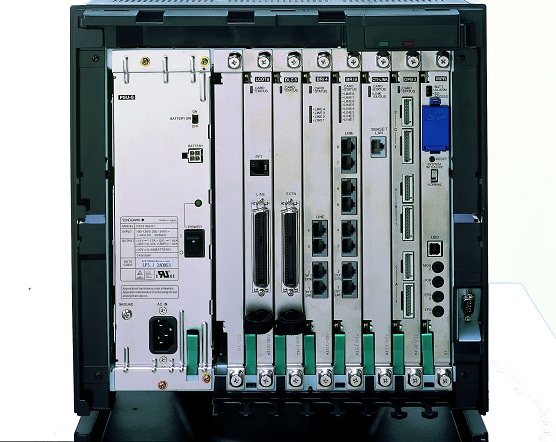
How to connect Panasonic PBX systems to the PC via LAN port?
You can connect your Panasonic PBX via LAN Port to Call Accounting Panasonic PBX collector software installed on the computer. If your PBX one of the following models :
For the commercial reporting workflow, report examples, and exact-model requirements, see Panasonic PBX SMDR reporting and call accounting.
- Panasonic KX-TDA30
- Panasonic KX-TDA50
- Panasonic KX-TDA100
- Panasonic KX-TDA200
- Panasonic KX-TDA600
- Panasonic KX-TDE100
- Panasonic KX-TDE200
- Panasonic KX-TDE600
- Panasonic KX-NS300
- Panasonic KX-NS500
- Panasonic KX-NS700
- Panasonic KX-NS1000
PBX Settings
Step 1- Go to Maintenance – Main.
Step 2- Set Port to LAN.
Step 3- Under Print Information, select which items you would like to display in the SMDR Printout.
Step 4- Date format: MM-DD-YY.
Step 5- Time format: 24H.
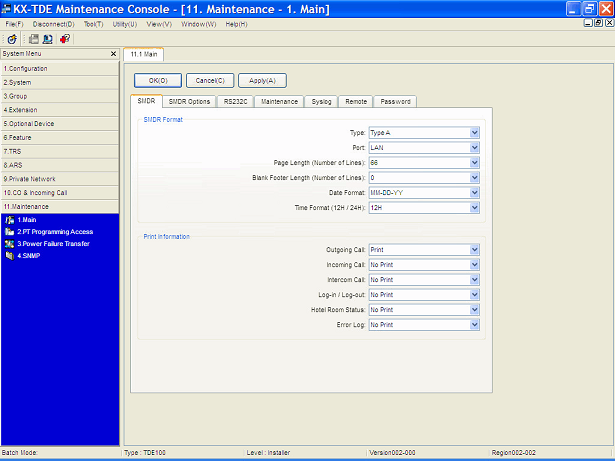
Step 6- Click on the SMDR Options tab.
Step 7- Note the default SMDR Port Number and Password.
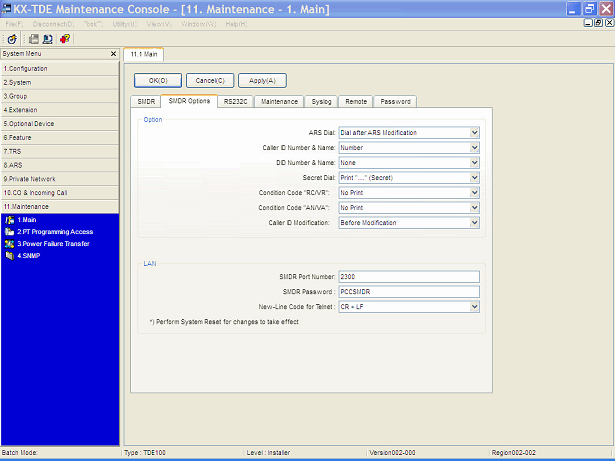
Step 8- Configure collector software user and password and IP address.
By default, the Panasonic system requires a username/password (default: SMDR/PCCSMDR)
Panasonic NS Series SMDR settings
1-Login to your web maintenance console.
2-Go to the 11-Maintenance section and click on main.
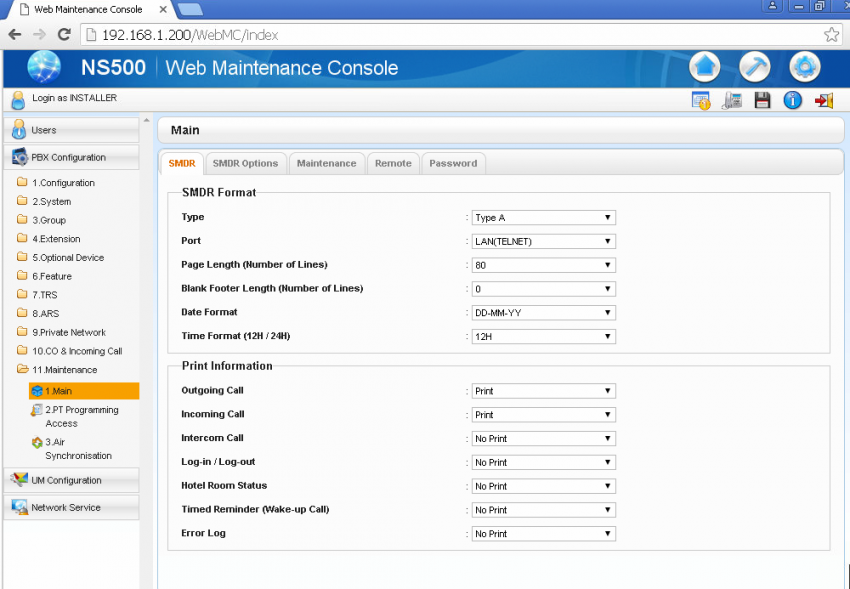
3-Make sure the following settings are correct:
Type => to A or C. Make sure you have the same settings on the PBXDom side.
Port => LAN(TELNET)
Outgoing Call => Print
Incoming Call => Print
Intercom Call => Print
4-Go to the SMDR options tab.
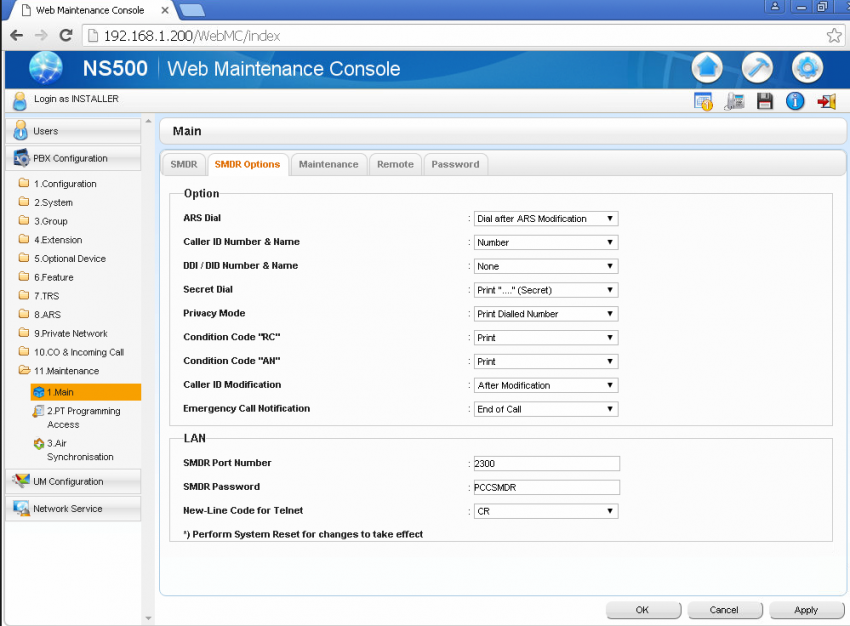
5-Make sure about the SMDR port number and SMDR password.
Default SMDR port number is 2300
Default SMDR password is PCCSMDR
Panasonic PBX Dashboard is the best way to monitor your phone system
The dashboard provides more than 70 widgets and 30 predefined reports and charts so that you can access all of your information from anywhere on any device. You’ll be able to set alerts for missed calls or even find out which extensions have been idle too long. It’s easy to use with no installation required – just connect it to our agent software then you’re ready!
Sign up now and try PBXDom 14 days free
For more information, read TCP/IP client connection.
Also, you can read the following pages about Call Accounting Software for Panasonic PBXes:
/blog/product/call-billing-software-panasonic-pbx/
/blog/engineering/how-to-connect-panasonic-pbx-systems-to-the-pc-via-rs232-serial-port/
/blog/engineering/automatic-missed-calls-notification-for-panasonic-system/