 PBXDom
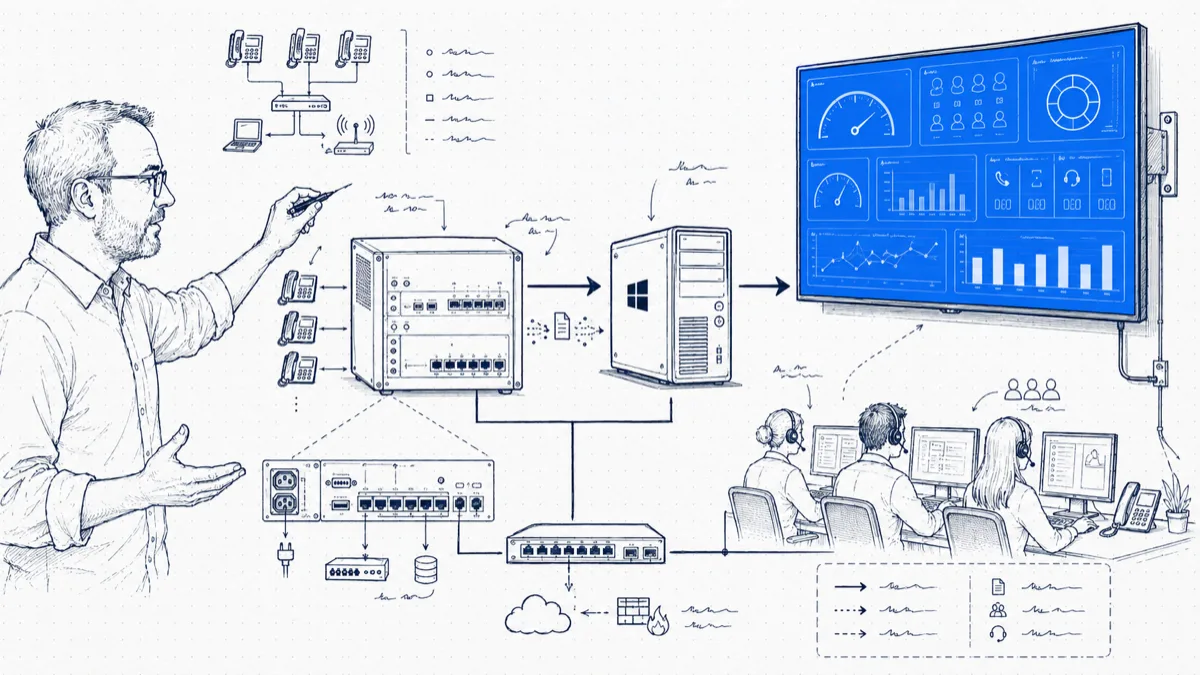
A wallboard does one thing a report cannot: it puts the number in front of the team while the day is still happening. The support team sees “4 calls missed today” in red on a TV, and the fourth missed call becomes the last one. Avaya IP Office ships with the feed a wallboard needs; SMDR output has been part of the platform for years, waiting for someone to switch it on and point it somewhere.
Setup time depends on IP Office Manager access, the collector host, and network reachability. The wallboard updates as completed-call records arrive.
You will need
- A documented Avaya IP Office model with its release and SMDR settings confirmed
- IP Office Manager with administrator rights
- An always-on PC or server on the same LAN to run the collector
- A TV or monitor with any device that runs a web browser
Step 1: Confirm and enable SMDR output
Follow the PBXDom model configuration for your exact system. The documented IP Office setup uses:
- Output set to SMDR Only in System > SMDR.
- IP Address set to
0.0.0.0, which makes IP Office listen for the collector connection. - TCP Port set to
2300, matching the collector configuration. - Records to Buffer set according to the model notes and expected traffic. The buffer is finite; it cannot guarantee recovery after an extended outage.
- Call Splitting for Diverts enabled as documented for forwarded-call records.
Avaya also supports send mode, which requires a receiving application to listen. See Avaya’s SMDR settings reference. Confirm any existing call logger’s requirements before changing the output configuration.
Step 2: Connect the collector
Check Avaya compatibility, then choose guided or self-setup. Install the collector on a compatible always-on Windows machine with access to the PBX.
Configure the collector with the IP Office unit’s address and matching TCP port 2300, following the selected model notes. The collector connects to IP Office in this configuration. Confirm the local network path and outbound access to PBXDom; security and data flow explains the architecture.
Make an ordinary test call, hang up, and check that its record appears. If it does not, check SMDR output, the PBX address, the matching port, and network access.
Step 3: Build the wallboard
Now the fun part. Create a new dashboard in the portal and add widgets. Use this as a starting layout, subject to the fields and widgets available for your deployment:
| Position | Widget | Why |
|---|---|---|
| Top left, large | Missed calls today | The number the team reacts to; make it the biggest thing on the screen |
| Top right | Answered calls today | Balance; the team should see wins alongside misses |
| Middle | Calls by agent/extension | Friendly competition does half your management for you |
| Bottom left | Average talk time | Catches both the rusher and the rambler |
| Bottom right | Calls per hour (today) | Shows the afternoon peak coming before it lands |
Resist the urge to add ten widgets. Five readable numbers beat fifteen tiny ones; the team reads a wallboard from across the room, at a glance.
Step 4: Put it on the TV
Any device with a browser works: a $50 HDMI stick PC, or an old laptop velcroed behind the screen. Open the dashboard’s display URL in the browser, hit F11 for full screen, and disable the device’s sleep settings. The dashboard refreshes itself, and after setup the device needs no keyboard. Mount the TV in the team’s line of sight rather than behind them.
Two small details save a support ticket later: set the browser to launch at boot with the dashboard URL, so a power cut recovers on its own (in Chrome, a startup shortcut with the --kiosk flag and the URL handles boot and full screen in one step), and check the TV’s settings for an anti-burn-in or pixel-shift option if it will show the same layout all day.
Step 5: Tune it after a week
Live with the wallboard for a week, then adjust. If the missed-calls widget reads zero day after day, review another available completed-call metric, such as call duration or hourly volume. If one agent tops the call count each day while another sits at the bottom, you have learned something no monthly report told you. The wallboard earns its TV when the team starts checking it without being asked.
For sample reports and collection requirements, open the Avaya reporting overview. Then check your Avaya system to choose a setup path for the 14-day trial.