 PBXDom
A 3CX dashboard can use the Call Detail Records that 3CX produces as calls complete. The reliable setup is not defined by a promised number of minutes. It depends on CDR access, a reachable collector host, an exact field mapping, and enough test calls to prove that transfers and unanswered calls are interpreted correctly.
This guide explains the current PBXDom active-socket workflow while preserving the native 3CX reporting option. If the built-in call, queue, ring-group, or extension reports already answer the question, use them. Add an external dashboard when you need a continuous view, a consistent reporting layer across systems, or access outside the 3CX administrative audience.
Choose the reporting path first
Current 3CX releases include call logs and operational reports for queues, agents, ring groups, and extensions. Authorized roles can schedule reports, with a report link and CSV attachment sent by email. The official 3CX call-reporting guide is the source of truth for the reports available in your release.
PBXDom uses a separate path:
3CX completed-call records
        │ active TCP socket
        ▼
PBXDom collector on Windows
        │ outbound cloud connection
        ▼
PBXDom dashboards, history, scheduled reports, and alerts
This path is useful when you need the same reporting definitions across multiple 3CX instances or a mixed PBX estate, dashboard access for people who do not administer 3CX, or PBXDom reporting and alert workflows.
Requirements before you connect
Confirm all of these before installing anything:
- Your exact 3CX deployment exposes configurable CDR output.
- You can administer the 3CX CDR settings.
- An always-on Windows machine is available for the PBXDom collector.
- 3CX can open a TCP connection to that machine across the relevant network or firewall.
- The collector host can reach PBXDom using its outbound cloud connection.
- You can make controlled incoming, outgoing, unanswered, and transferred test calls.
The public PBXDom catalog provides a 3CX General profile rather than a numbered-version list. Confirm the release, license, hosting topology, and CDR network path with the 3CX compatibility check.
Step 1: Install and register the collector
Install the PBXDom collector on the always-on Windows machine and register it to the intended PBXDom account. Keep the collector stopped until you have reviewed the vendor, model, connection, and listener settings.
In PBXDom setup, select:
- vendor:
3CX; - model:
3CX General; - connection:
LAN; - time zone: the time zone used to interpret the call records.
The current PBXDom profile documents TCP port 3000 as the default collector listener. Use the value displayed in your setup if it differs. A custom port is valid only when the same value is configured in 3CX and allowed through the network path.
Step 2: Enable the 3CX CDR active socket
3CX documents four CDR outputs: one file for all calls, a separate file per call, server/passive socket, and client/active socket. The PBXDom workflow described here uses client/active socket: 3CX initiates a TCP connection to the collector and sends records as calls complete.
In the 3CX Admin or Management Console:
- Open the CDR configuration. The menu location can differ by 3CX release; current 3CX documentation describes it under the advanced CDR settings.
- Enable CDR generation.
- Select
3CX CDR service is client / Active Socket. - Enter the IP address or resolvable address of the collector host.
- Enter the same TCP port shown in the PBXDom collector setup.
- Save the configuration.
Refer to the official 3CX CDR documentation when labels differ from your console.
Step 3: Match the CDR fields exactly
The receiving parser depends on both the selected fields and their order. 3CX allows an administrator to enable, disable, and reorder fields, so an open socket can still deliver unusable data when the format does not match.
Use the field list shown in the current PBXDom setup screen. Do not copy an old screenshot as the source of truth. In particular:
- preserve the required field order;
- preserve comma delimiters when the PBXDom profile requires them;
- include the call identifiers and time fields shown by PBXDom;
- do not reorder fields later without updating and retesting the receiver.
Useful 3CX fields include call and history identifiers, start/answer/end times, duration, termination reason, source and destination numbers, final destination, call chain, and display names. The exact PBXDom mapping remains the authority for what its parser expects.
Step 4: Start the collector and test the data path
Start the collector after both sides use the same address, port, and field format. Then make at least these calls:
- one answered inbound call;
- one unanswered inbound call;
- one answered outbound call;
- one call transferred between extensions.
Wait for each call to complete before looking for its record. Compare the 3CX call log with the PBXDom result:
- start time and time zone;
- incoming or outgoing direction;
- source and destination;
- answered or unanswered state;
- duration;
- final extension after a transfer.
A transfer can create related call legs. Validate the reconstructed call journey rather than expecting the raw number of CDR rows to equal the number of calls a user remembers.
Step 5: Build the dashboard
Once the test records match, use PBXDom widgets for the operational questions you need to monitor. A practical first dashboard normally includes:
- total incoming, outgoing, and abandoned calls;
- incoming traffic by hour;
- missed calls with time and destination;
- extension or department activity;
- trunk utilization;
- a recent-call table for validation.
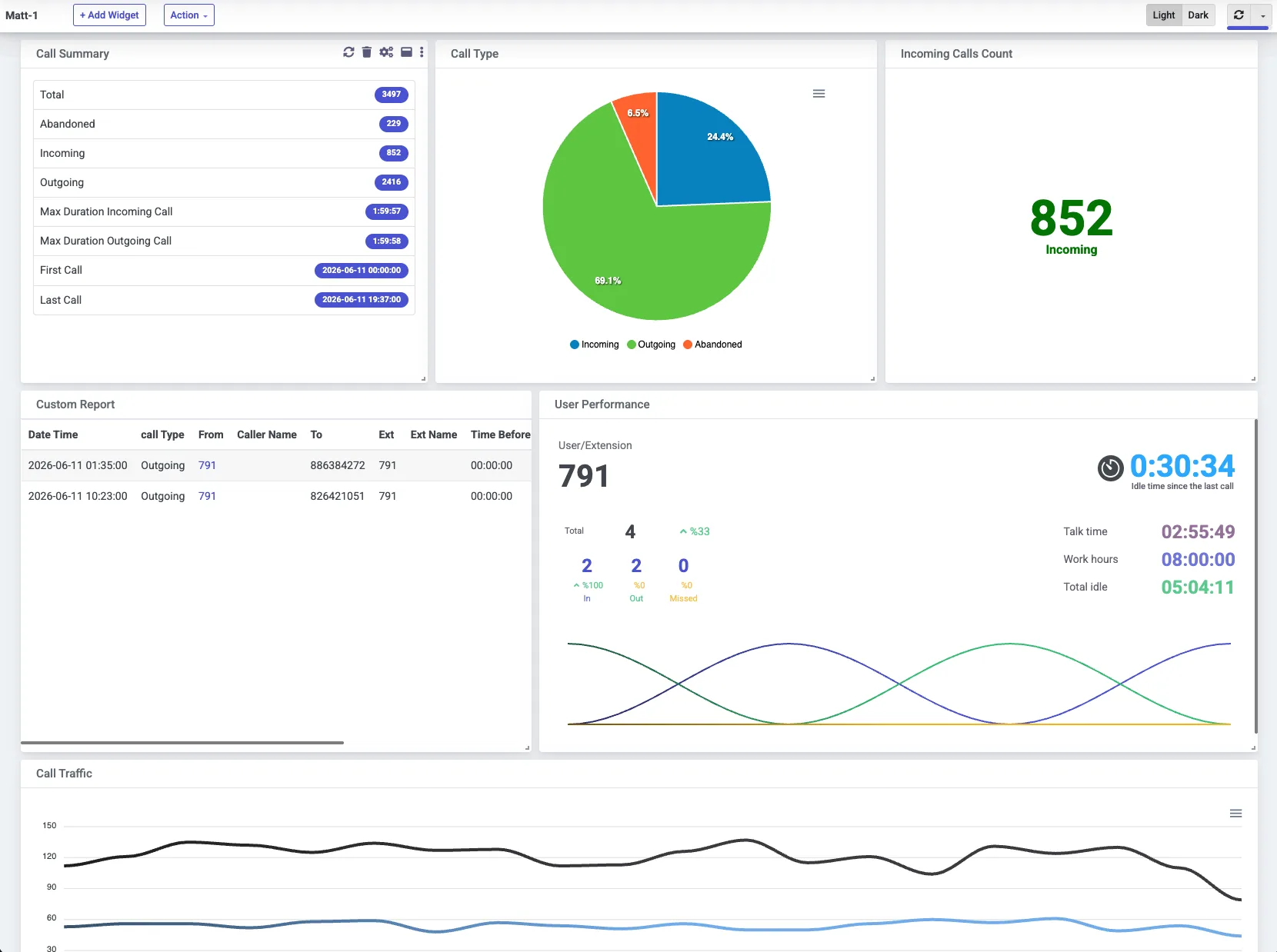
The image uses synthetic 3CX call records and shows the current PBXDom dashboard interface. It is not evidence that every widget or field is available from every 3CX deployment; availability depends on the emitted CDR fields and the selected PBXDom plan.
Troubleshooting
The collector receives no records
Confirm that calls have completed, CDR generation is enabled, active-socket mode points to the collector host, the address and port match, and the firewall permits the connection from 3CX to the collector.
The connection works but fields are wrong
Compare the enabled fields, order, and delimiter setting with the current PBXDom profile. A format mismatch is more likely than a dashboard problem when records arrive but columns are shifted or call directions are incorrect.
Unanswered calls are missing
Make a controlled unanswered test call and confirm the required termination and time fields are enabled. Do not change field selection without retesting the complete mapping.
Transfers look like duplicate calls
Use the 3CX identifiers and call chain to group related legs. Do not remove rows merely because their timestamps overlap.
Next step
Review the full 3CX reporting and analytics deployment, including native-reporting alternatives and version boundaries. Then check the exact deployment before choosing self-setup or a guided connection.